AI Response Drafts: Reply faster without sounding like a bot
Parth Koshti


Founder @ SnitchFeed
Social listening only pays off when you show up in the thread while it still matters. The hard part is not finding the mention. It is writing something helpful, on-brand, and short enough to post before the conversation moves on.
AI response drafts in SnitchFeed close that gap. You stay in the Feed, open Respond on a mention, and get a draft grounded in the post, your listener, and workspace Brand Context. You edit, transform, and paste on Reddit, X, LinkedIn, or Bluesky yourself. We never auto-post on your behalf.
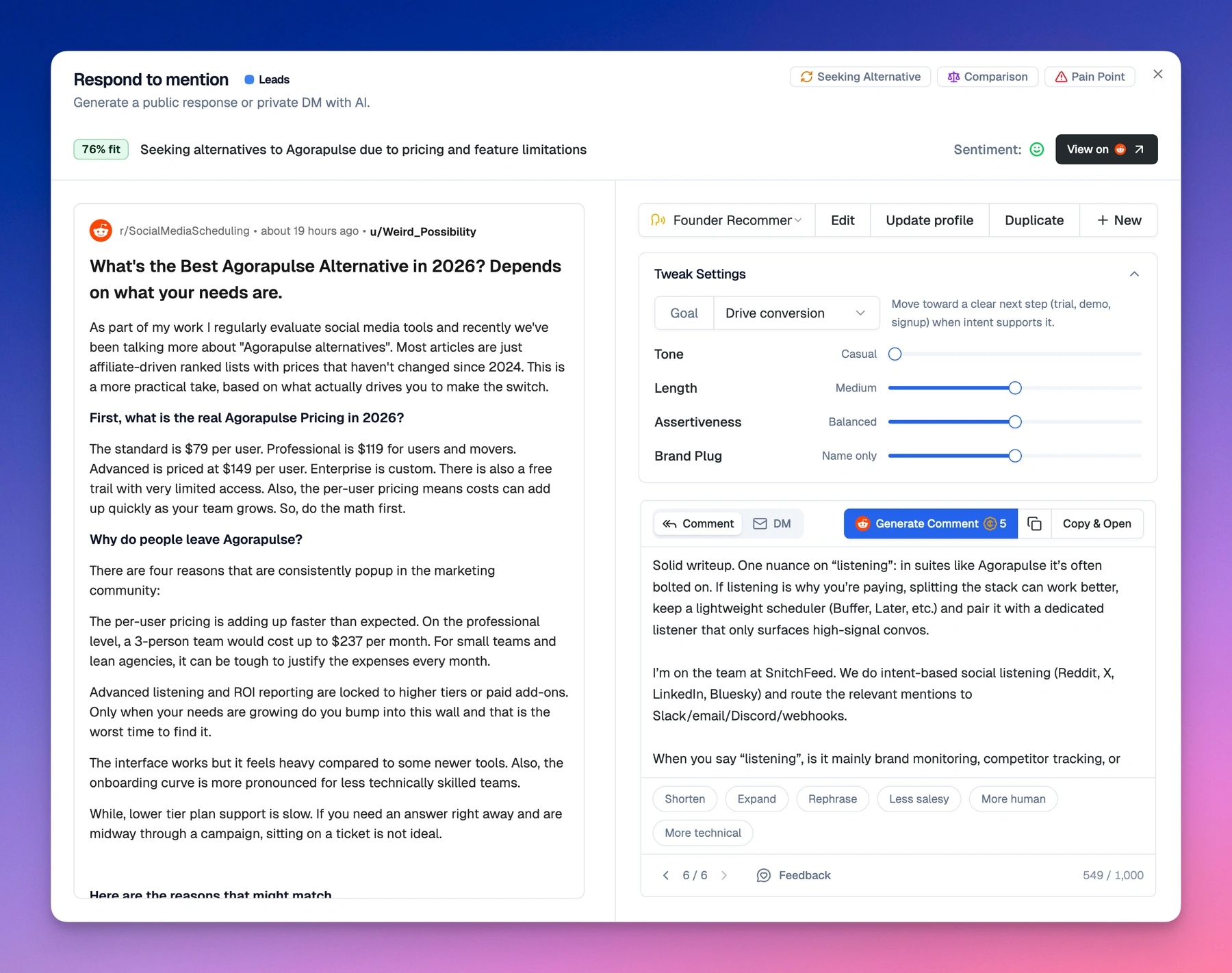
This post walks through setup, a practical GTM workflow, delivery modes, and transforms so you can go from “I saw a great mention” to “I replied” in minutes. For credit usage, see Credits & usage.
What you need before the first draft
Two one-time setup steps unlock generation for your whole workspace:
1. Brand Context
Under AI Context → Brand Context, fill in who your company is, what you sell, who you serve, and how you position. The model uses this so drafts do not invent products, URLs, or positioning that are not yours.
If Brand Context is empty or stale after a pivot, drafts and scoring both suffer. Treat it like your internal positioning doc and keep it current. See Brand Context for the full field guide.
2. At least one response profile
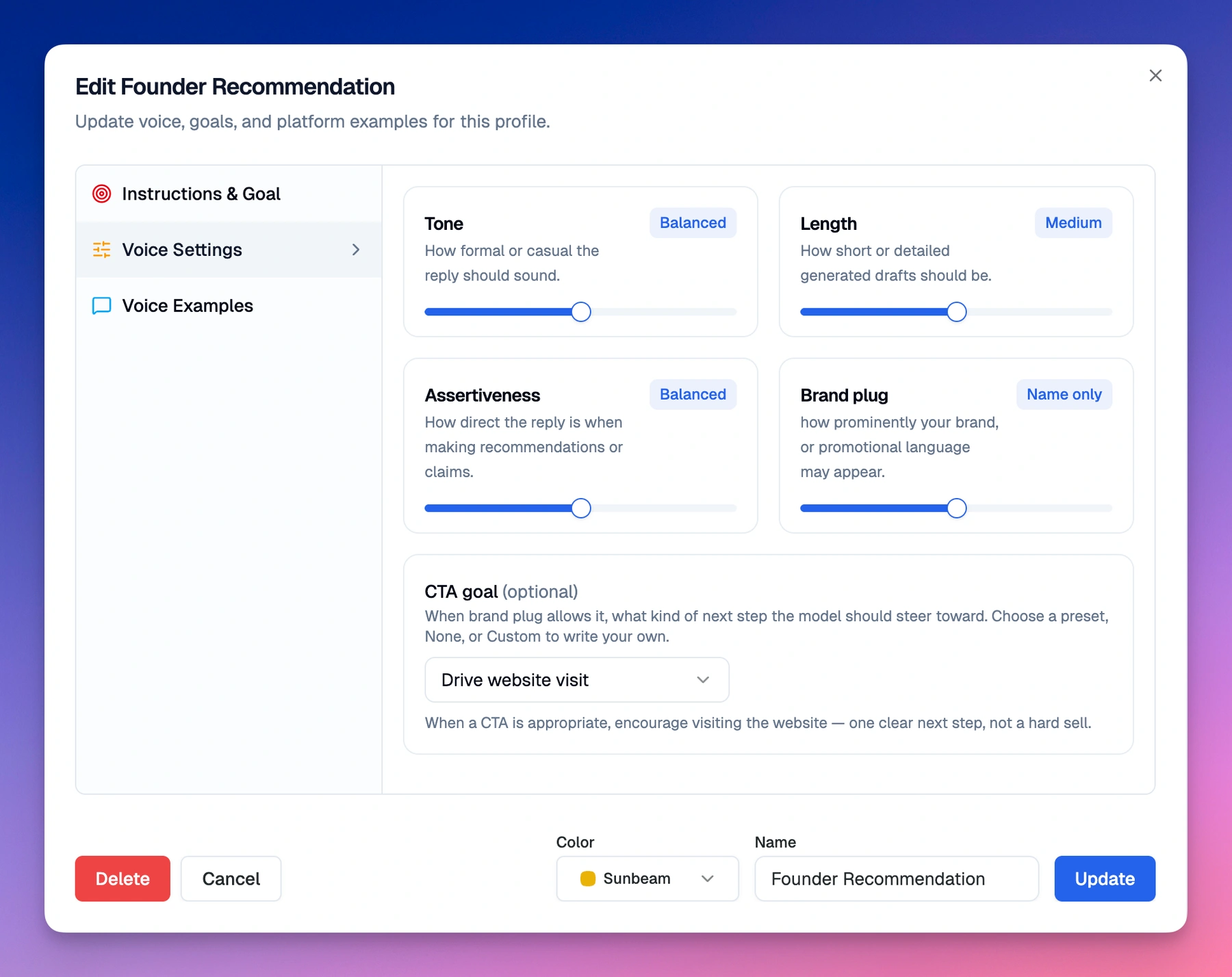
Under AI Context → Response Profiles, create a preset with:
- A response goal (for example drive conversion, provide support, build relationship)
- Voice sliders: tone, length, assertiveness, how much your brand name appears
- Platform examples: at least one real or ideal reply per network you care about
Profiles are shared across the workspace. Most teams keep a small library: Support, Founder, Enterprise AE, Community, and so on. Step-by-step setup is in Create a response profile.
After you save examples, SnitchFeed builds voice summaries per platform (badges like Voice ready). Those summaries steer style without pasting your examples into every generation.
The workflow that works for GTM teams
Here is a repeatable loop teams use daily:
- Filter the Feed for high Fit Score mentions and intents you care about (Buying Intent, Comparison, Pain Point, and similar).
- Open a mention, read the AI summary and intent pills, and decide if the thread is worth joining.
- Click Respond.
- Pick the profile that matches the motion (conversion vs support vs founder voice).
- Optionally open Tweak Settings for this mention only to shift tone or goal without changing the shared profile.
- Click Generate (labeled Comment, Tweet, DM, etc. depending on platform and mode).
- Refine with transforms or manual edits, check the character counter, then Copy or Copy & Open to post on-platform.
SnitchFeed does not publish for you. That keeps you in control of timing, compliance, and final wording, especially on regulated or high-stakes threads. The full Respond flow is documented in Generate responses.
Inside the Respond dialog
Mention context (left)
You see a native-style preview: author, post body, listener name, Fit Score, intent signals, and AI summary. Use it to sanity-check tone before you generate. This is especially helpful when multiple teammates share one workspace.
Draft workspace (right)
- Profile: Switch presets, Edit the full profile, Update profile to save slider tweaks back to the preset, or Duplicate / New to fork settings.
- Tweak Settings: Per-mention overrides for goal and voice sliders.
- Delivery: Public reply vs DM where the platform supports both (X, LinkedIn, Bluesky, Reddit). History is separate per mode on the same mention.
- Editor: Streaming draft, version history (
1 / 3), manual edits, transforms, and platform character guidance.
Character limits
The editor surfaces live counts when a cap applies (for example Bluesky 300, Reddit 1,000, LinkedIn 1,250). If the count goes red, shorten manually or run Shorten before you post.
Transforms: refine without another generation
After you have a draft, use transforms to adjust wording. Each transform adds a version you can step through with the history arrows. See Generate responses for when transforms are available and how billing works in Credits & usage.
| Transform | When to use it |
|---|---|
| Shorten | Over the platform limit or the thread needs a tight reply |
| Expand | Add a bit more context or warmth without regenerating from scratch |
| Rephrase | Same meaning, different phrasing; useful when the first draft feels stiff |
| Less salesy | Tone down pitchy language on support or community threads |
| More human | Sound conversational when the draft reads too corporate |
| More technical | Add specificity for developer or practitioner audiences |
Transforms are best when the draft is close but not post-ready. If the angle is wrong, change profile or Tweak Settings and run Generate again.
Credits
AI response drafts are available on all plans. See Credits & usage for how generations and transforms use workspace credits.
Example plays by role
Sales and GTM
Filter to high Fit Score plus Buying Intent or Comparison. Use a conversion-leaning profile with low Brand plug. Generate a public reply while the author is still active, or switch to DM on X or LinkedIn when the ask is sensitive.
Support and customer success
Provide support or Handle feedback profiles with examples from real tickets. Prefer public replies when transparency helps; use DM when you need account details.
Founders and community
Build relationship profiles with casual tone and minimal brand mention keep you helpful without sounding like marketing automation.
Next steps
- In the app: complete Brand Context, create a profile, then Respond on your next high Fit Score mention.
- Docs hub: AI-generated responses
If you want help shaping profiles for your motion, reach out. We are happy to review a sample thread and suggest presets.
Related articles
Boolean search for listener queries: tighter monitoring, less noise
Build listener queries with AND, OR, and NOT logic, per-term platforms, and LinkedIn/X filters so you catch buying signals without drowning in junk.
3 min readWe're switching to credits — here's what that means for you
SnitchFeed is moving to a credit-based model. More control over how often you scan, a public API, and a cleaner path to shipping new features without nickel-and-diming you.
2 min readBest Social Media Monitoring Tools in 2026, by Alert Speed
We compared 16 social media monitoring tools on how fast they alert you, on which plan, and on X, Reddit, LinkedIn, Hacker News and Bluesky.
23 min read


